Workbook exercise #5: A VBA exercise for Excel
Due dates for all assignments can be found on the [main
grid] of the course webpage.
Note: The computer lab for CPSC 203 is located in MS 119
(the "Computer
Science computer lab"). If you find that your particular version of Word
(e.g. Office 365, older versions of Office, MAC users) does not include
everything needed for a feature then you should to complete that feature in
MS119. You can enter the lab 24/7 but card access is required. However one of
the security doors (entrance closer to the Earth Sciences building rather than
Science Theaters) should allow public access on weekdays roughly during normal
business hours. And to login to the computers in the lab you need to [set
up your CPSC login credentials]. [Image
of the doors that don't require card access during business hours]
Alternatively login to a lab computer from your own. [Information
link created by UC-IT with modifications by James Tam, for questions: www.ucalgary.ca/it].
Keep in mind that the remote login method to a Windows computer works (I've
tested it), it is convenient (you don't have to be on campus), the process is a
bit of learning curve and sometimes operations are slow.
Introduction and tip for programming
The previous
comments from the last workbook exercise apply: it's more challenging than some
of the others, it will give you a better idea of what writing real life programs
are like, you will get better at programming by writing more programs etc. But I
should add: If there is
one exercise that you
should not skip it is this one. This exercise may be one
of the most challenging ones that you will be required to solve but the solution
involves issues similar although simpler than the ones in the
assignment. Working through this problem will assist you with the assignment so
don't just skip attempting it just because of the low marking weight.
Description
Starting files that you should modify and submit:
- Excel macro enabled spreadsheet: [
Tamville_visitor_data_STARTING].
This file is a macro enabled Excel spreadsheet that you can use to contain or
save your program (see Figure
1).
Word 2007+ document: [Wb_Ex5_backup].
Copy-paste your program into this spreadsheet in order to back up your work.
If you have your Excel VBA code backed in a Word document this way then you
should also submit to D2L the Word document along with the macro enabled
Excel spreadsheet.
Complete the features specified below and submit the
macro enabled spreadsheet along with the starting Word document into D2L.
In addition to backing up your work into the Word spreadsheet
it's critical that you
save your macros in the above spreadsheet
when you first
create the macro (via
View->Macros
in the Excel ribbon).
DO NOT
save it in "All Open workbooks". Doing the latter will save your
macro in another spreadsheet that is local to your computer. (This means that
when your marker downloads your submission the code will not be available and
you will receive a zero).

Figure 1
: Save your program in the
starting spreadsheet
Because
your macros will be included in the spreadsheet, when it comes time to submit your
work you can just upload the macro-enabled spreadsheet. Double check that your
VBA macro really is in the Excel spreadsheet that you upload! It is up to you to
do the check, don't rely on us to do it for you. If you want to be
extra safe (and I highly recommend that you do this) you can copy paste your VBA
program into a regular Word document such as the [document
provided] and submit the Word document (containing your VBA program in the
body of the Word document) as well as your macro-enabled spreadsheet (containing
your VBA program accessible via the Visual Basic editor).
It would be a good idea to check your submission by downloading what you
uploaded into D2L and actually open that spreadsheet, ideally on a different
computer that the one you used to write your VBA program (to help ensure that
you aren't looking at a local file on the first computer which you used to write
the program). As was the case with the assignments do not use other compression
utilities (such as zip), otherwise your submission may not be marked.
Requirements for this exercise
Write an Excel VBA program that will count the number of visitors to the town
"Tamville". Your program will determine the total number of visitors on a
per month basis and show this information in the form of a popup for each month
where visits occurred. In the '2018' visits only occurred in December (when the
town opened for tourism). In the '2019' worksheet visits occurred in every month
except May & September. Information about the total number of visitors
(whole year) will be written
into the spreadsheet itself (Cell 'F1').

Your program will implement the features below on the currently active
worksheet. While you can use the data in the two worksheets to test your
submission your program must be able to work with any worksheet that contains
visitor data in this format. To be blunt: Your solution
cannot be
tailored to work only with the cases in the starting spreadsheet (e.g. 33 rows
of visitor data, exactly 4 days where visitors came into town in January etc.)
To help you test and debug the program Column '
D'
contains the information that your program is to tabulate.
Features of your program:
| |
Feature 1:
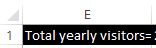
Writes the hard-coded text "Total yearly visitors=" to cell
E1
using the
Cells or
Range
object. (Worth
0.1 GPA) [Example] |
| |
Feature 2:
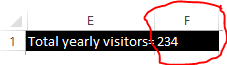
Correctly writes the total number yearly visits to Cell
F1
(Requires Feature 3A to be correct
for credit to be awarded) (Worth
0.2 GPA) [Example] |
| |
Feature 3:
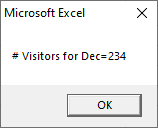
Correctly counts the total number of visitors for each month and
displays the count using a
MsgBox: |
| |
|
Feature 3A:
Uses a loop to step through each non-empty row in the worksheet. (Worth
1.0 GPA) |
| |
|
Feature 3B:
Uses a loop nested inside of the one written for Feature 3A to step through the
visits for a month. This loop repeats the process (or reruns from start to end
for each month where visits have occurred). In the starting spreadsheet the
nested loop for Feature 3B will run 10 times for the 10 months for the 2019 year
and once for the 2018 year. The number of times the nested loop runs for each of
those 10 months varies depending upon the number of entries for that
month e.g. Jan. 2019 it runs 4 times, Feb. 2019 it runs twice. Obviously this feature requires Feature 3A to be
complete and correct. (Worth
1.2 GPA)
An alternative (which can also be
awarded full credit) to nesting a loop within a loop for 3B is to nest a
branch within loop. [Example
program] |
| |
|
c.
Feature 3C:
The nested loop (or nested branch) from 3B is used to count and display
the visits for each month via popup
MsgBox.
Obviously requires Feature 3B to be complete and correct.
(Worth 1.5 GPA)
[Example running with worksheet '2018' as the
active one]
The same information to be
shown in the popups is the same as results from the Excel
SUM
function shown in Column 'D'.
The information is shown in that column to help you check the results of
your program.
|
Video
- Although this is a fairly simple exercise here is a run of my solution
to the exercise in case you need it: [Video]
Documentation requirements
Although you won't be graded on
documentation for exercises it still would be
a good idea to include it so you don't miss it in the assignment. What's needed
for assignments include: your full name as provided to the university (make sure
it matches, don't include 'nicknames'), student identification number, tutorial
number and
(new for A4) some evidence
of a versioning system (as covered in the [Intro
to VBA programming] notes. Within the version you should clearly specify what features of the assignment that you
completed or didn't complete. In order to get credit the documentation has to be
clear and complete
Similar to documentation requirements you aren't graded for style for workbook
exercises but it would be a good idea to still follow those requirements so you
get in the habit of doing this.
- Each
level of code indenting is consistently 1 tab. Instructions
in the sub-routine (between the 'sub'
and 'end-sub' is 1
level:
sub exercise4VBA
'Instructions indented one level (one tab)
end sub
The body of IF or WHILE structures
counts as another level of indenting. An IF within
an IF or WHILE within
a WHILE (or even an IF within
a WHILE or a WHILE within
an IF) each count as another level.
sub exercise4VBA
while()
'Instructions indented one level (one tab)
if()
'Nested body indented two levels (two tabs)
if()
'Another level of nesting: indented three levels (three tabs)
end sub
- Good naming conventions (e.g. variables,
sub-routines, the name of Word document containing the VBA program and
constants if applicable) are followed. Some examples of naming conventions
are provided in [the
VBA Part I notes].
New for A4
& this exercise:
The use of named constants as appropriate.
-
Operating system specific issues: Non-functional
submissions will receive only partial credit (if any at all). They are
extremely unlikely to occur. Just in case it does come up here's the rule:
submissions must work on the lab computers (MS119). This the common
environment used to determine if your assignment features are truly working.
That way odd cases such as submission only working on a student's machine or
the marker's machine don't come up. It's up to you to test and check this
is the case.
- MAC
users: you can test your submission on the Windows machines in MS119.
Alternatively you can also try using [a
remote login program] to test your submissions from home.
- Caution for Windows users: take
care that you don't accidentally submit a shortcut to a file instead of
the actual file. (Check the file name and compare the file
size to your original file. Simply downloading the shortcut file as a
test won't work because that shortcut will work on your computer but not
on anyone else's machine).
-
Late assignments or
components of assignments: Alternate submission mechanisms (non
exhaustive list of examples: email, uploads to cloud-based systems such as
Google drive, time-stamps, TA memories) cannot be used as alternatives if
you have forgotten to submit work or otherwise have not properly submitted
into D2L. Only files submitted into D2L by the due date is what
will be marked, everything else will be awarded no credit. The final cut
off date after which full assignments will not be accepted is after the maximum
progressive penalty (listed below) can be applied.
-
Assignment extensions:
- Because of the
possibility of a large number of illness (Covid) you may have up to 1
full assignment (A1 - A4) or up to 2 of the workbook exercises removed
from the calculation of your term grade. If
you request an extension from me let me know the name of your tutorial
instructor and the tutorial number [link to : tutorial
and TA information) because the markers won't accept
late submissions without directly getting an email from me and I need to
know who to contact. Also extensions need to be requested before the
due date and not afterward. You can find information about your
registration (e.g. which tutorial you are registered in) in the "Student
Center" in [PeopleSoft].
- You will not get
these special considerations (dropped graded components) for other
reasons. Details were provided during the administrative lectures [covered
during the first week of the term]
- How you will be graded for assignments. Because
most exercises are fairly simple a marking spreadsheet isn't required.
Instead you can find your grade point in the D2L Dropbox and read any
comments that the Teaching assistant may have entered.
-
Questions or
concerns about grades have been released: Assignments will be marked by
your tutorial instructor (the "Teaching Assistant" or "TA") for your tutorial
section that you are officially registered in (instructor information listed
here as well). When you have questions about marking this is the
first person that you should be directing your questions towards. If you
still have question after you have talked to your TA, then you can talk to
your course
(lecture) instructor but please indicate in your email that you first
contacted your TA before going into your concerns. If you don't know which
tutorial section you are officially registered in then you can find this
information in the "Student Center" via [PeopleSoft].
Collaboration:
Assignments
must reflect individual work;
group work is not allowed in this class nor can you copy the work of others.
Some "do nots" for your solution: don't publically
post it, don't email it out, don't show it to other students,
don't get help with your assignment from a tutor (if you have hired one).
For more detailed information as to what constitutes academic misconduct
(i.e., cheating) for this course please read the following [link].
Submitting your work:
-
The spreadsheet must be electronically submitted using D2L.
-
You need to submit the correct Excel spreadsheet that
contains the macro (a macro-enabled Excel spreadsheet
.xlsm).
-
Make
sure that you [check
the contents of your submitted files]
(e.g., is the file okay or was it corrupted, is it the correct version etc.).
It's your responsibility to do this! (Make sure that you submit your
assignment with enough time before it comes due for you to do a check). If don't
check and there were problems with the submission then you should not expect
that you can "learn your lesson" and simply resubmit.
-
Do
not use compression utilities (such as zip) or archiving utilities (such as
tar) otherwise your submission may not be marked. The space savings in D2L
is not worth the extra time required by the marker to process each
submission.
-
How often can you submit:
Multiple submissions are allowed for this assignment: You can (and
really should) submit work as many times as you wish before the due
date. Due dates are strict, only what is in D2L by the deadline is what
will be marked.
Other methods of verifying that your work was completed
on time (e.g. checking timestamps, emailed files etc.) will NOT be
accepted. However only the
latest versions of each individual spreadsheet are the ones that will be
marked, everything else will be ignored (because it is not fair to your
marker to sort through multiple versions of your files). In the case of
A1 the marker will just look at the latest version of: Calgary and the merged letter
that the marker can 'click through'.
-
Operating system specific issues: Non-functional
submissions will receive only partial credit (if any at all). They are
extremely unlikely to occur. Just in case it does come up here's the rule:
submissions must work on the lab computers (MS119). This the common
environment used to determine if your assignment features are truly working.
That way odd cases such as submission only working on a student's machine or
the marker's machine don't come up. It's up to you to test and check this
is the case.
- MAC
users: you can test your submission on the Windows machines in MS119.
Alternatively you can also try using [a
remote login program] to test your submissions from home.
- Caution for Windows users: take
care that you don't accidentally submit a shortcut to a file instead of
the actual file. (Check the file name and compare the file
size to your original file. Simply downloading the shortcut file as a
test won't work because that shortcut will work on your computer but not
on anyone else's machine).
-
Late assignments or
components of assignments: Alternate submission mechanisms (non
exhaustive list of examples: email, uploads to cloud-based systems such as
Google drive, time-stamps, TA memories) cannot be used as alternatives if
you have forgotten to submit work or otherwise have not properly submitted
into D2L. Only files submitted into D2L by the due date is what
will be marked, everything else will be awarded no credit. The final cut
off date after which full assignments will not be accepted is after the maximum
progressive penalty (listed below) can be applied.
-
Assignment extensions:
- Because of the
possibility of a large number of illness (Covid) you may have up to 1
full assignment (A1 - A4) or up to 2 of the workbook exercises removed
from the calculation of your term grade. If
you request an extension from me let me know the name of your tutorial
instructor and the tutorial number [link to : tutorial
and TA information) because the markers won't accept
late submissions without directly getting an email from me and I need to
know who to contact. Also extensions need to be requested before the
due date and not afterward. You can find information about your
registration (e.g. which tutorial you are registered in) in the "Student
Center" in [PeopleSoft].
- You will not get
these special considerations (dropped graded components) for other
reasons. Details were provided during the administrative lectures [covered
during the first week of the term]
- How you will be graded for assignments. Because
most exercises are fairly simple a marking spreadsheet isn't required.
Instead you can find your grade point in the D2L Dropbox and read any
comments that the Teaching assistant may have entered.
-
Questions or
concerns about grades have been released: Assignments will be marked by
your tutorial instructor (the "Teaching Assistant" or "TA") for your tutorial
section that you are officially registered in (instructor information listed
here as well). When you have questions about marking this is the
first person that you should be directing your questions towards. If you
still have question after you have talked to your TA, then you can talk to
your course
(lecture) instructor but please indicate in your email that you first
contacted your TA before going into your concerns. If you don't know which
tutorial section you are officially registered in then you can find this
information in the "Student Center" via [PeopleSoft].
Late
submissions for assignments when there is no extension granted: Make
sure you give yourself enough time to complete the submission process so
you don't get cut off by D2L's deadline (or your submission will be
automatically flagged as late by D2L and it will be graded appropriately)..
|
Submission received: |
On time |
Hours late : >0 and <=24 |
Hours
late: >24
and <=48 |
Hours
late: >48 |
|
Penalty: |
None |
-1 GPA |
-2 GPA |
No credit |